Remove Background From Video
HUG APPSBeauty
3.3217.00 Reviews
- Version
- 3.1
- Installs
- 1.00M
- Age Rating
- Everyone
Screenshots
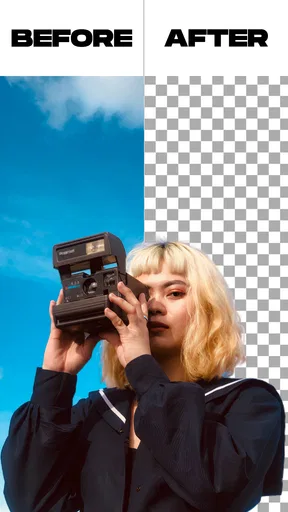
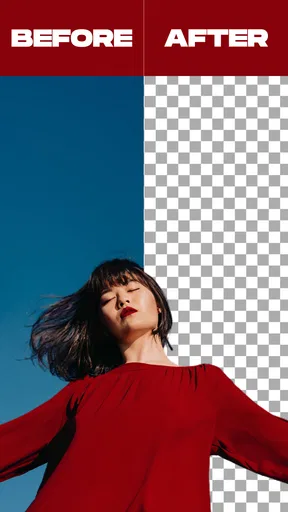
Our Review of Remove Background From Video
 Analysis by Appyee
When I need to tidy up a quick portrait or make a short clip stand out from its surroundings, I want a tool that gets me to the useful part without turning the job into a full editing session. Remove Background From Video is built around that narrow task: separating a subject from a photo or video so the background can be changed. I see it as a practical shortcut for casual social posts, profile images, small product clips, and playful edits—not a replacement for a complete video editor.
Before trying it, I would decide what matters most: a quick result, precise control, or a finished design with several elements. This app is most appealing when the background is the main thing I want to change and the subject is easy to distinguish. If my plan also involves careful color work, detailed text, music, or a layered composition, I would expect to finish the project elsewhere.
It is a free beauty app from HUG APPS, rated for Everyone. It requires Android 6.0 or later, and its current version is 3.1. More than a million people have installed it; its average rating is 3.3 from around seven thousand ratings, with 217 written reviews. I read that middling score as a reason to keep expectations grounded: the tool may suit straightforward material well, but results can vary with the source footage and device.
Choosing the right background-removal workflow
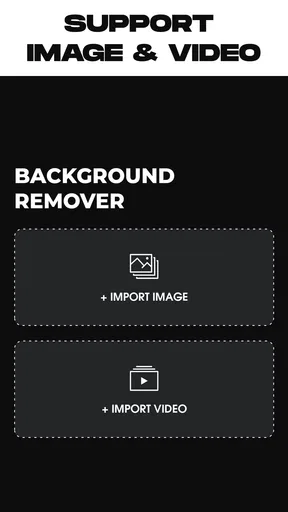
The first thing I noticed is that the app focuses on one job instead of surrounding that job with a large collection of unrelated editing controls. I can start with a photo when I want a clean cutout, or choose a video when the subject needs to remain separated across moving frames. That distinction matters: a still image is usually forgiving, while a video exposes every weak edge, missed strand, and momentary mistake.
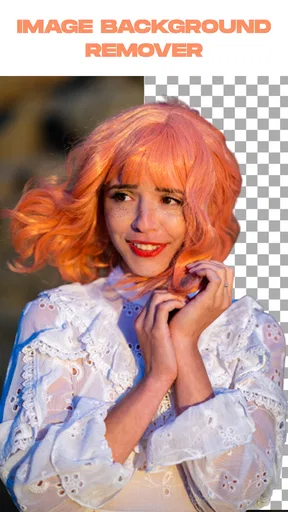
For a quick photo edit, the process feels most useful when the subject has a clear outline and reasonable contrast with the original background. A person standing against a plain wall is a much better candidate than someone wearing colors that blend into a busy room. I would also choose a well-lit image before trying to rescue a dark, compressed one. Background removal is not magic; the quality of the source determines how convincing the result can look.
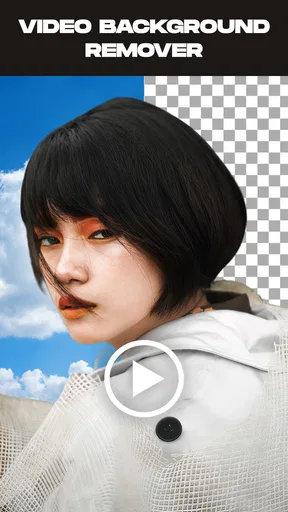
Video work requires more patience. A subject that stays fairly central and does not move too quickly gives the app a better chance of producing a stable result. Fast gestures, hair moving across the face, transparent materials, and crowded scenes are difficult cases for almost any automatic remover. The practical lesson is to judge the app by the material I want to edit, not only by its headline function.
The strongest reason to use it is speed: it turns a background-removal task into a focused mobile edit instead of making me learn a full desktop-style editor. That is especially helpful when I only need a cutout for a story, thumbnail, invitation, or simple visual joke. I can concentrate on the subject and the replacement setting rather than spending time building a timeline or searching through advanced menus.
Where it earns a place in everyday editing
A realistic example would be preparing a short clip for a small online shop. I might record a product demonstration at home, where the room behind me is untidy or visually distracting. If the item remains visible and reasonably separated from the surroundings, removing that background can make the clip feel cleaner. I could then use a plain color or a more appropriate scene behind it, making the result easier to share without rearranging the whole room first.
The same approach works for a profile picture. Instead of cropping a face tightly and accepting whatever happens to be behind it, I can isolate the person and place the cutout over a calmer background. This is not necessarily a professional portrait workflow, but it is convenient for someone who wants a quick change without opening a complicated design application.
I also found the photo side more forgiving for creative experiments. A single cutout can be used in a greeting image, a collage, a simple poster, or a humorous composition. Because the subject does not need to remain accurate from frame to frame, small imperfections are easier to overlook. For this reason, I would recommend starting with photos if the main goal is to learn how the app handles edges.
For video, I would keep the first project short and visually simple. A talking-head clip recorded in front of a contrasting wall is a sensible test. A dance video filmed outdoors, with loose hair and people crossing behind the subject, is not. This is one of the more important trade-offs: the app can save time on suitable footage, but it cannot turn difficult footage into a polished studio composite automatically.
Small choices that can make a cutout more convincing
My first tip is to prepare the source before importing it. Good lighting and a clear subject outline are more valuable than adding effects afterward. If I can record the clip again, I would choose a plain background, avoid placing the subject in shadow, and leave some space around moving arms or objects. That small amount of planning reduces the chance that the automatic separation will cut into the subject.
My second tip is to inspect the edges at the moments when the subject moves most. A still preview can look convincing while a hand, sleeve, or strand of hair breaks apart during motion. I would scrub through the entire clip before sharing it, especially near quick turns and gestures. This is a non-obvious but important difference between judging a photo cutout and judging a video cutout.
My third tip is to choose the replacement background with the quality of the cutout in mind. A busy new background can hide some minor flaws, but it can also make poor edges more obvious through contrast. A soft, simple background is usually safer than a detailed scene. If the subject has a rough outline, a background with similar visual softness may look more natural than a sharply detailed landscape.
Another useful workflow is to treat the app as the separation stage, not the entire production stage. I would remove the background here, then use another editor if I need precise text placement, music timing, color correction, transitions, or several layers. That division of labor keeps expectations realistic and lets this app do what it is designed to do without forcing it into a role it was never meant to fill.
Where the automatic approach can fall short
The main limitation is consistency. Background removal depends heavily on contrast, movement, lighting, and fine details. A clean portrait can be straightforward, while a video with hair, shadows, or overlapping objects can produce edges that look unstable. In a casual post, I may accept that. In a client-facing advertisement or polished brand video, I would want to check every section carefully and possibly choose a more advanced tool.
That weakness also affects the choice between this app and the usual alternatives. A full design platform is generally better when I need templates, typography, layered composition, and a wider set of finishing tools in one place. A dedicated professional editor is a better fit for frame-by-frame correction and detailed control over a demanding video. A simple gallery editor may be enough if all I want is a basic crop or filter and do not need background separation at all.
Remove Background From Video makes more sense when the background itself is the problem and I want a direct route to a cutout. It is less attractive for someone who expects a complete creative suite. I would also skip it for highly controlled commercial work unless I had time to review the output closely. The free price is appealing, but free access does not remove the need for judgment when the source footage is complicated.
The app’s rating of 3.3 is worth reading as a signal rather than a verdict. It does not make the tool unusable, but it suggests that results and satisfaction are not identical for everyone. In my view, that is understandable for an automatic editing app: one person may import a well-lit portrait and get exactly what they need, while another may test a fast-moving clip and see distracting mistakes. The same feature can feel excellent or disappointing depending on the material.
Who is likely to find it useful?
I would recommend it to casual creators, students, social media users, and anyone who occasionally needs a subject isolated from its surroundings. It is particularly suitable for people who do not want to learn a complex editor just to replace a photo background or prepare a short visual clip. The focused workflow is its biggest advantage, and the free entry point makes experimentation easy.
It can also suit small sellers and hobby creators who make quick demonstrations on a phone. If the product or presenter is clearly visible, the app may help turn an ordinary recording into something more presentable. I would still review the result before publishing, because an awkward edge around a product can make a simple clip look less trustworthy rather than more professional.
I would not make it my first choice for filmmakers, agencies, or creators whose work depends on precise masking. Those users need dependable control over difficult edges, timing, and compositing. They may be better served by a desktop editor or a mobile application built around professional video layers. Likewise, people who only want filters, stickers, or automatic beautification may find the background-removal focus too narrow.
Anyone wondering whether it works on older phones should note that the minimum requirement is Android 6.0. That makes it accessible to a wide range of Android users, although the practical experience can still vary with the device and the complexity of the video. Longer or more demanding clips are naturally more important to test on the phone I actually plan to use, rather than assuming that a supported operating system guarantees identical performance.
It is also reasonable to ask whether the app is suitable for children. Its Everyone content rating makes it broadly appropriate from a content perspective, but the quality of an edit still depends on how it is used. For younger users, I would treat it as a simple creative tool for photos and short clips, with an adult helping when the result is intended for public sharing.
What switching between tools really costs
Using a second editor is not necessarily a drawback, but it does add a handoff. I would need to save or export the cutout, open it in the other app, and check that the subject still looks right against the new design. For a single profile image or simple post, that extra step may be more effort than the edit is worth; for a clip that needs captions or music, it is a sensible trade-off.
I would also decide whether I need the background changed at all. If a tighter crop, better framing, or a less distracting filter solves the problem, the gallery tools already on a phone may be quicker. The dedicated removal workflow becomes worthwhile when the original setting cannot be fixed with a crop—for example, when I want to keep the full subject while replacing a cluttered room.
For video, I would test one representative clip before committing to a larger batch. That reveals whether the subject’s movement and lighting are manageable, and whether the edges hold up in the kind of background I plan to use. It is a more useful test than judging only a still frame, and it helps me avoid spending time preparing several clips that turn out to be poor candidates.
My recommendation after weighing the trade-offs
Remove Background From Video succeeds when I treat it as a quick, focused background-removal utility. It can save me from opening a large editing suite for a small task, and it is especially convenient for clean photos, simple portraits, and uncomplicated clips. The ability to work with both photos and video gives it more practical range than a picture-only cutout tool.
Its weakness is just as clear: automatic separation is not reliably perfect in difficult footage. Moving hair, low contrast, shadows, and crowded scenes can demand careful checking or a different application. I would not promise a flawless result from every import, and I would not use it as my only tool for a high-stakes production.
Overall, I see it as a useful free option for quick personal edits, provided I choose suitable source material and inspect the finished edges. If your priority is convenience over fine-grained control, this app is worth trying; if your priority is professional masking precision, start with a more advanced editor instead. That is the honest balance: HUG APPS has made a focused beauty and media tool that can be genuinely handy, but its value depends on keeping the project simple and the expectations realistic.
Verdict
Strengths of Remove Background From Video
- Removes video backgrounds without requiring a green screen.
- Simple interface makes basic edits quick for beginners.
- Supports exporting clips for use on social media platforms.
- Useful for product demos, profile videos, and creative overlays.
- Automatic processing can save time compared with manual masking.
Limitations of Remove Background From Video
- Results may contain rough edges around hair or fast-moving subjects.
- Processing longer or high-resolution videos can take noticeable time.
- Some advanced tools or exports may require a paid plan.
- Background removal may perform poorly in low light or cluttered scenes.
- Exported videos may include watermarks or compression on the free version.
Similar Picks in This Category
View All
Beauty Makeup Editor & Camera
Photo & Video Editors - Instant Solution4.7

Perfect365: Face Makeup Editor
Perfect365, Inc.3.5

Mirror Plus - HD Mirror app
Digitalchemy, LLC4.8

Cute Lock Screen & Wallpapers
Prometheus Interactive LLC4.6

HD Camera for Android
One Music Player4.5

Phone Mirror app - True Mirror
Cards4.6
Frequently Asked Questions
What is Remove Background From Video used for?
Remove Background From Video is designed to isolate the main subject in a video and remove or replace the surrounding background. It can be useful for creating social media clips, product presentations, profile videos, tutorials, and promotional content. Depending on the version, you may be able to use a transparent background, a solid color, or a custom image or video behind the subject.
Does Remove Background From Video require a green screen?
No, the app is generally intended to remove backgrounds without requiring a physical green screen. It uses automatic subject detection and visual processing to separate people or objects from the background. Results are usually best when the subject is clearly visible, the lighting is even, and the background is not excessively crowded or similar in color to the subject.
How accurate is the background removal?
The accuracy can vary depending on the video quality, movement, lighting, camera stability, and complexity of the scene. Clear footage with good contrast normally produces cleaner edges, while hair, transparent objects, fast motion, shadows, and overlapping subjects may require additional processing. It is a convenient tool for quick edits, although professional projects may still need manual refinement.
Can I replace the removed background with another image or video?
In most cases, yes. After separating the subject, Remove Background From Video may allow you to add a new image, color, or video as the replacement background. This makes it possible to create different visual settings without recording again. Before downloading, check the available editing tools because background replacement options can differ between free and premium versions.
Is Remove Background From Video free to download and use?
The application may be free to download, but some features can be restricted by advertisements, export limitations, watermarks, processing times, or subscription requirements. Premium access may unlock higher-quality exports, longer videos, faster processing, and additional background options. It is worth reviewing the in-app purchase details before editing important projects or starting a subscription.
